If you have bought an SSL/TLS certificate from Loopia, you download the certificate and its private key in the Loopia Customer Zone. Click the certificate under SSL certificates on the start page, then choose Download certificate and Download key. This works for purchased certificates (Regular and Wildcard), not for the free certificates from Let’s Encrypt.
Important: You can only download certificates created on or after 2 September 2026. If your certificate is older, contact our support first to have it unlocked for download.
When do you need to download the certificate?
A certificate you buy from Loopia is installed automatically on your website with us, so you don’t need to download anything for HTTPS to work. You need the files if you want to use the certificate somewhere else, for example on your own server or with another provider.
How to download the certificate and key
- Log in to the Loopia Customer Zone.
- Scroll down the start page to the SSL certificates section. It lists your certificates with their type, status, domain name and expiry date.

- Click the certificate you want to download. A window with the certificate’s settings opens.
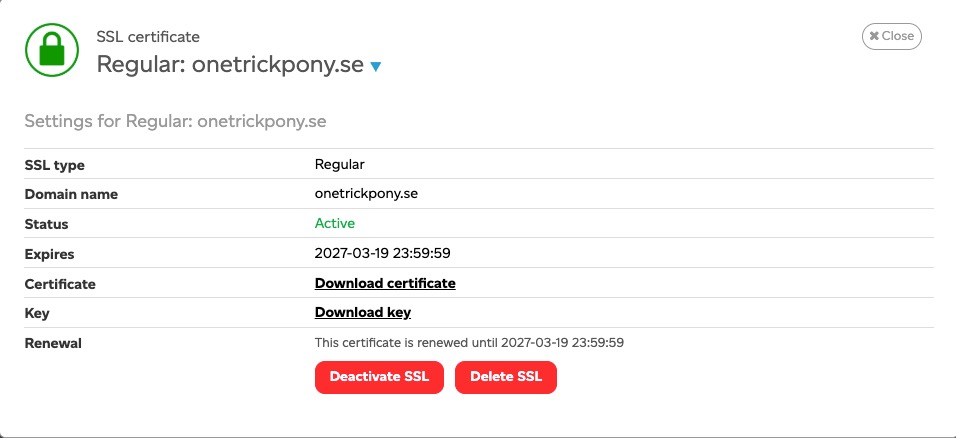
- Click Download certificate to save the certificate to your computer.
- Click Download key to save the private key.
- Click Close when you are done.
Keep in mind
The private key is secret. Anyone who has both the certificate and the key can pose as your website, so store the file securely and don’t share it with anyone who doesn’t need it.
Below the download links are the buttons Deactivate SSL and Delete SSL. Don’t click them if you only want to download the files.