Since version 3.7, WordPress has had a built-in feature that updates itself automatically for minor releases. You are also prompted in the WordPress dashboard (admin area, wp-admin) whenever a major new version is available. Keeping WordPress up to date is essential because older versions can contain security holes, and if your site has been hacked or infected with malware, reinstalling the WordPress core files is one of the most effective ways to clean it. This guide explains how to perform a manual update of WordPress over FTP when the automatic update is not an option.
The screenshots below use FileZilla 3.16.1 and WordPress 4.4.2, but the procedure is the same for any FTP client and any WordPress version.
Download the latest version of WordPress
Go to WordPress.org and download the latest release. You can choose the language version here – don’t worry about getting it wrong, you can always change the language later from the dashboard.
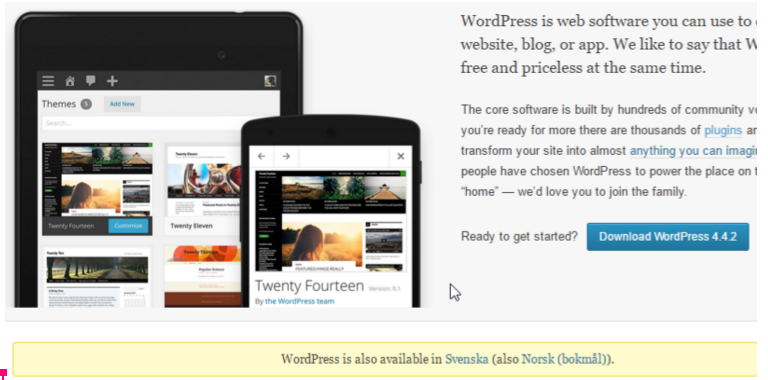
Save the zip file to your computer and extract it into a folder.
Connect to your hosting via FTP
Log in to your Loopia FTP account and open the example.com/public_html/ folder, where your current WordPress files live.
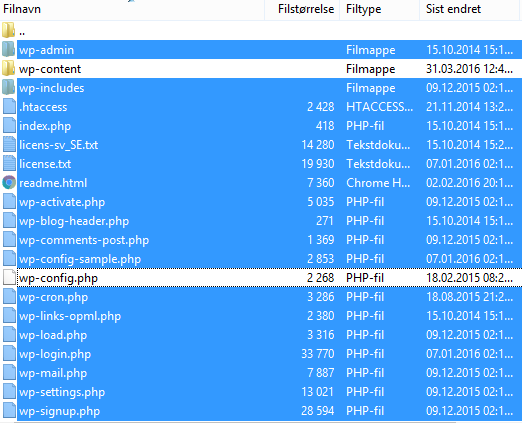
Select the files to replace – carefully
This is the most important step. You want to replace the WordPress core files but keep your content, configuration and customisations. Select all files and folders except:
- The wp-content folder – contains your themes, plugins and uploads.
- The .htaccess file – contains your rewrite rules and any custom server settings.
- The wp-config.php file – contains your database credentials and site-specific configuration.
If you have uploaded any other material to public_html (such as an old website, PDFs or other documents), make sure those are deselected as well.
Replace the core files
- Delete the selected files from the server.
- From the folder you extracted on your computer, upload all files except wp-content to public_html on the server.
Finish the update in your browser
Open https://example.com/wp-admin in your browser. If WordPress needs to update its database to match the new version, it will prompt you to do so – click the button to run the upgrade. Then log in to confirm that you are running the latest version of WordPress.
Your manual update is now complete.