If your WordPress site were a person, the theme (template) would be its clothes. Just as changing your clothes can completely change your style, changing the theme in WordPress can give your site a completely new look. With the right choice and combination you can make your site feel serious or playful, modern or traditional – whatever you want to convey.
Welcome to our WordPress school! In this series we go through everything you need to know to get started with your own website in WordPress. In the first part we covered how to install WordPress and publish your first post. Now it is time to learn how to change the look of your website by switching the theme.
How to change the theme in WordPress
Changing the theme in WordPress is easy. To access all the themes installed on your WordPress site:
- Log in to the WordPress admin panel (admin area, wp-admin).
- Click Appearance → Themes in the left column.
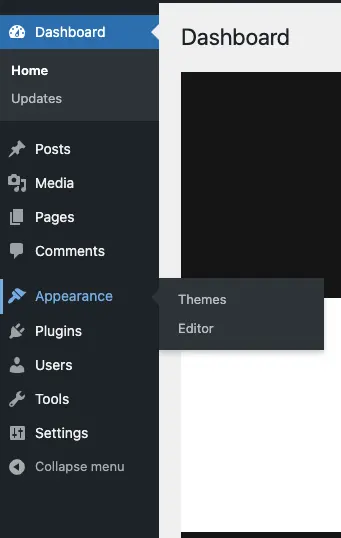
That’s it! Now it is time to look at how to choose a theme and activate it.
1. Find a WordPress theme that suits you
In WordPress there are thousands of free themes you can use when creating your website. If you cannot find one that fits, there are many ready-made themes you can buy, and plenty of skilled experts you can hire to build a completely unique look. The most important thing is that you only buy and install themes from legitimate sources such as wordpress.org. Themes there have been audited and are more secure as a result.
Choosing a theme for your website is a bit like buying a house – you need to view a lot of them before you find one that really suits you. Some you dismiss as soon as you step inside; others you need to spend time with before deciding. The house doesn’t need to be perfect from the start either; as long as the walls are in the right place, it is not hard to repaint the living room to taste.
Choosing a theme works the same way. If you have time and enjoy it, there are endless combinations of colour and shape that can give your site exactly the feel you want. With a little tweaking and some basic CSS and HTML knowledge, you can polish away the small imperfections in any theme.
How to add a new theme in WordPress
- Click Add New Theme.
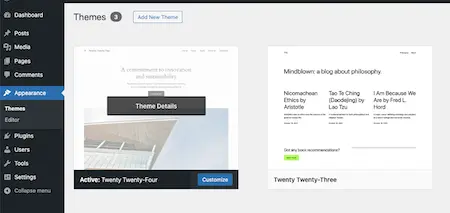
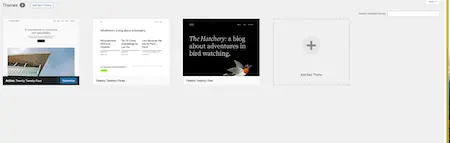
2. Find a theme that suits your website. You can do this in one of three ways:
- Use the tabs at the top to browse popular or latest themes.
- Use the search box to search for a theme. This is perfect if you already know what you are looking for.
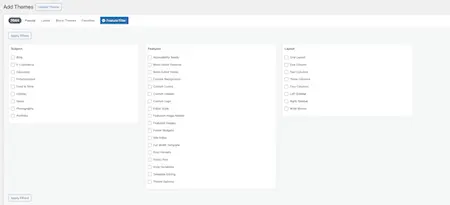
- Use Feature Filter if you know roughly what characteristics you are looking for. Choose the type of website you are building, which features the theme should have and the layout you want, then click Apply Filters. You will get all the themes that match your choices.
3. Preview the theme you are interested in by hovering over its thumbnail and clicking Preview.
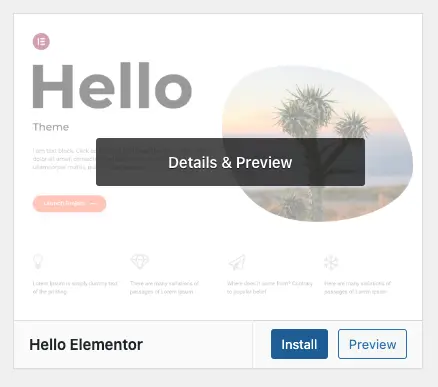
A virtual test page now shows an example of how the theme can look.
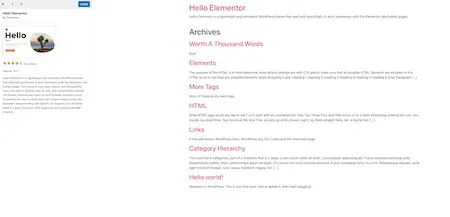
4. Install the theme you want to use by clicking Install, either inside the preview or on the theme thumbnail.
2. Activate the WordPress theme
Once you have found and installed a theme, you need to activate it before it takes effect. Here is how:
- Go to Appearance → Themes in the left column again.
- Hover over the new theme. The Activate and Live Preview buttons appear.
- Preview the theme.
- When you are happy, click Activate.
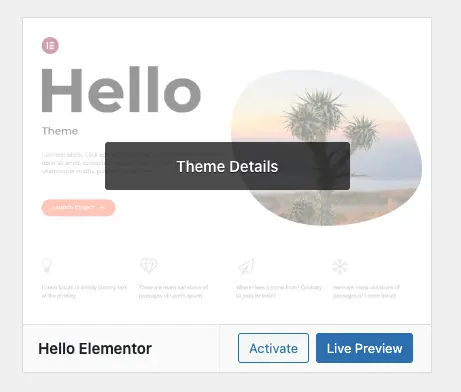
Congratulations – you have switched your WordPress theme!
Changing your WordPress theme really is no harder than that. Now all that is left is to make something nice out of it.
Good luck!
Read more about the website tool WordPress at Loopia »
Missed a part of the WordPress school, or want to read the next one?
You can quickly and easily jump to one of the other parts here: