You may have created a WordPress site because you wanted a news feed or a blog. But if your plan is to turn that blog into a full website, WordPress makes it easy.
Welcome to the WordPress school! In this series we go through everything you need to know to get started with your own website in WordPress. We have already covered how to install WordPress and publish a post, how to change the theme (template) and how to install plugins (add-ons). In this final part we look at how to turn your blog into a website.
Turn your blog into a website
To turn your WordPress site into a true website rather than a blog or news feed, you essentially need to do two things: set up a static homepage and create a menu. Here is how.
1. Make the homepage static
As usual, we start from the WordPress admin panel (admin area, wp-admin).
- Log in to the WordPress admin panel.
- Click Pages → Add New Page.
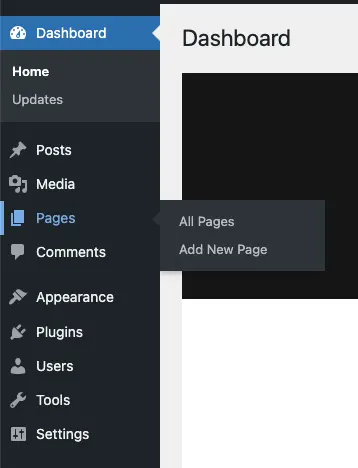
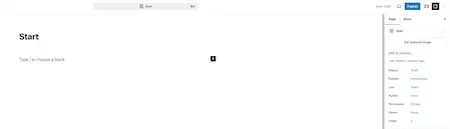
3. Use a title such as “Start”, “Home” or anything else that suits the front page of your site. Add the images and text you want, then click Publish.
4. Create a second page with the title “News”. Do not write any other content, do not change any templates and do not insert any images. Click Publish.
5. Click Settings → Reading.
6. Under “Your homepage displays”, select A static page. Then select your newly created home page from the drop-down list next to “Homepage” and your news page next to “Posts page”.
7. Click Save Changes, then check that everything looks right on your site.
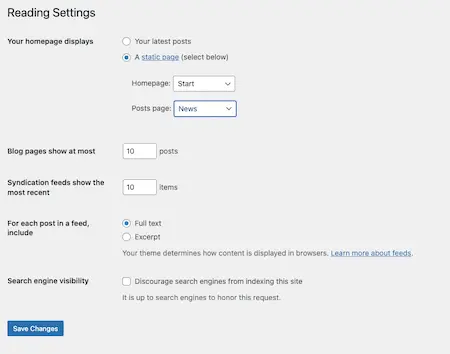
Done – your home page is now the main page of your website. If you visit the “News” page, you will see all your blog posts listed there.
Disable comments on the home page
You probably want readers to comment on individual news posts, but not on your homepage. To disable comments on the homepage only:
- Log in to the WordPress admin panel.
- Click Pages → All Pages, then click your homepage.
- Click Page in the right column, then click Discussion and change Open to Closed. Do not forget to save your changes.
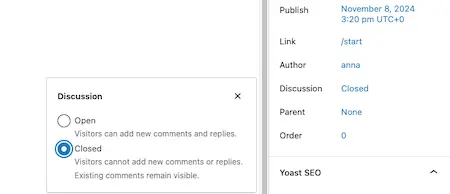
Visitors can no longer comment on your home page. They can still comment on posts under “News” and any other pages you have created. If you would like to turn off comments across the entire site, you can do so under Settings → Discussion.
2. Create menus in WordPress
Once you have a static homepage, it is time to create a menu. Exactly how you do this depends on which WordPress theme you are using.
- Log in to the WordPress admin panel.
- Click Appearance.
- If you see an Editor option, you create and edit your menu using the Navigation block in WordPress.
- If you see a Menus option, you create and edit your menu inside wp-admin.
Your static homepage and menu are now in place. Keep adding pages and building out your menu, and your website will soon be complete.
That is the end of the WordPress school – we wish you the best of luck with your website!
Read more about the website tool WordPress at Loopia »
Missed a part of the WordPress school?
You can quickly and easily jump to one of the other parts here: