Send email from an ASP.NET application using the System.Net.Mail library, with the code examples below for plain-text messages, HTML messages, SMTP authentication and SSL/TLS encryption against Loopia’s mail servers.
The System.Net.Mail namespace ships with the .NET Framework and provides the MailMessage and SmtpClient classes used in all of the examples below.
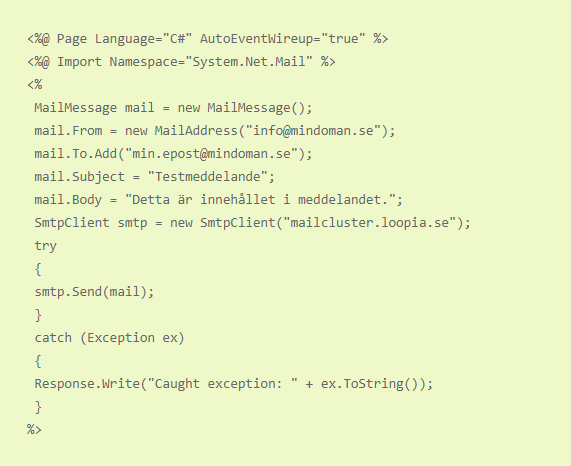
Sending a plain-text message
To send an email formatted as plain text, create a MailMessage object and hand it to an SmtpClient configured for Loopia’s outgoing SMTP server. The code in the screenshot below shows the minimum required to send a simple text email.
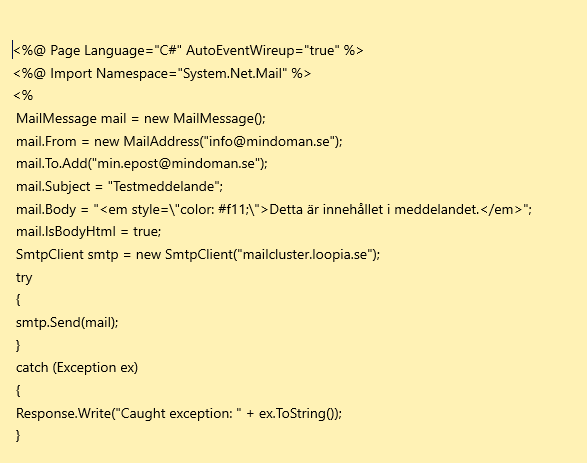
Sending an HTML message
To send the message as HTML instead, set mail.IsBodyHtml to true and place HTML markup in mail.Body. Everything else stays the same as in the plain-text example.
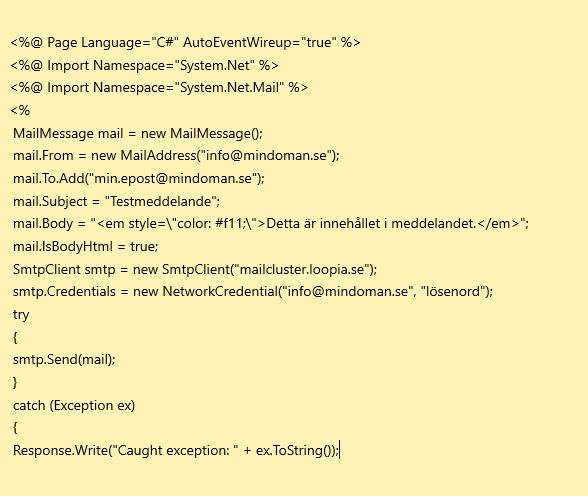
Sending email with an authenticated user
When sending email through Loopia’s SMTP server, you should always authenticate with a valid mailbox username and password. Unauthenticated mail is likely to be classified as spam (junk mail) or rejected outright.
To authenticate, include the System.Net namespace and assign a NetworkCredential object to the SmtpClient.Credentials property, as shown below.
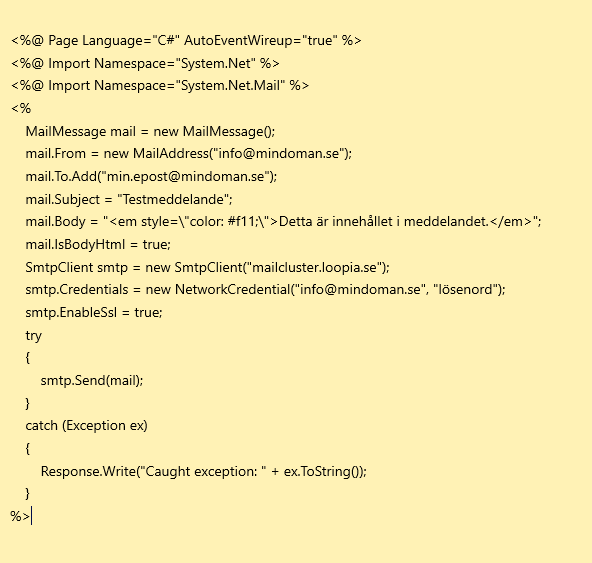
Sending email with authentication and SSL/TLS
To encrypt the connection to the SMTP server, set smtp.EnableSsl to true. Combined with authentication, this is the recommended way to send mail through Loopia.
Loopia SMTP server settings
Use the following values in your ASP.NET code:
- SMTP server (host): mailcluster.loopia.se
- Port: 587 (submission, with STARTTLS) or 465 (implicit SSL)
- Username: your full email address
- Password: the password for that mailbox
- EnableSsl: true