This step-by-step guide explains how to restore your website data from a Loopia backup snapshot using an FTP client (file upload program). Loopia keeps automatic snapshots of your FTP files in a hidden .snapshot folder that you can browse and copy files from over FTP (File Transfer Protocol).
Connect to your FTP account
Connect to your FTP account using your preferred FTP client. If you are not sure how to do this, we have guides for a number of FTP clients in our FTP clients overview.
Navigate to the FTP folder containing the files you want to restore.
Open the .snapshot folder
In the FTP client’s path field, type .snapshot and press Enter. You will then see a list of snapshot folders.
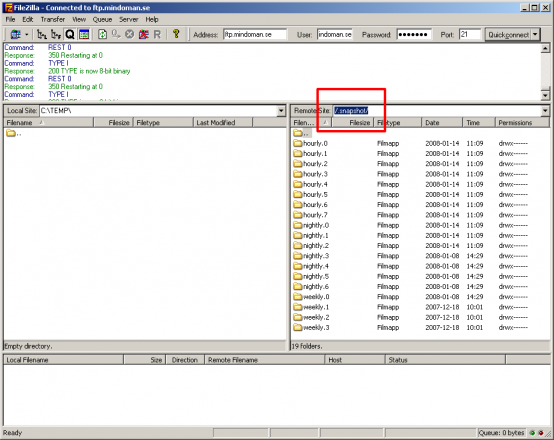
Each folder contains a complete backup (snapshot) of the directory you are in:
- hourly snapshots are taken four times a day, at 08:00, 12:00, 16:00 and 20:00. You have eight of these covering the past 48 hours. The most recent backup is always hourly.0; as new backups are taken, older ones are rolled down the hierarchy.
- nightly snapshots are taken once a day at midnight.
- weekly snapshots are taken once a week, on Sunday night.
Restore files from a snapshot
- Open the snapshot folder containing the version of the files you want to recover.
- Select the files or folders you want to restore and download them to your local hard drive.
- Navigate to the FTP folder where you want to put the restored files.
- Upload the files from your local hard drive to that FTP folder.
The restore is now complete.
Note: the files inside .snapshot folders are read-only, so you cannot accidentally delete files in your backup.