Change the password for each of Loopia’s services — the Customer Zone, email accounts, FTP (File Transfer Protocol), MySQL databases and VPS — as described below, and make sure it meets the password requirements listed at the end.
Change the password for the Loopia Customer Zone
To change the password for the Loopia Customer Zone, click Account Settings in the right-hand menu and then click Login credentials. You can now choose a username (which may be one of the domain names you have in your account) and enter a new password. Click Save to apply the change.
Change the password for an email account
To change the password for an email account, click the email account you want to update. In the next box, select Edit, enter a new password and click Save.
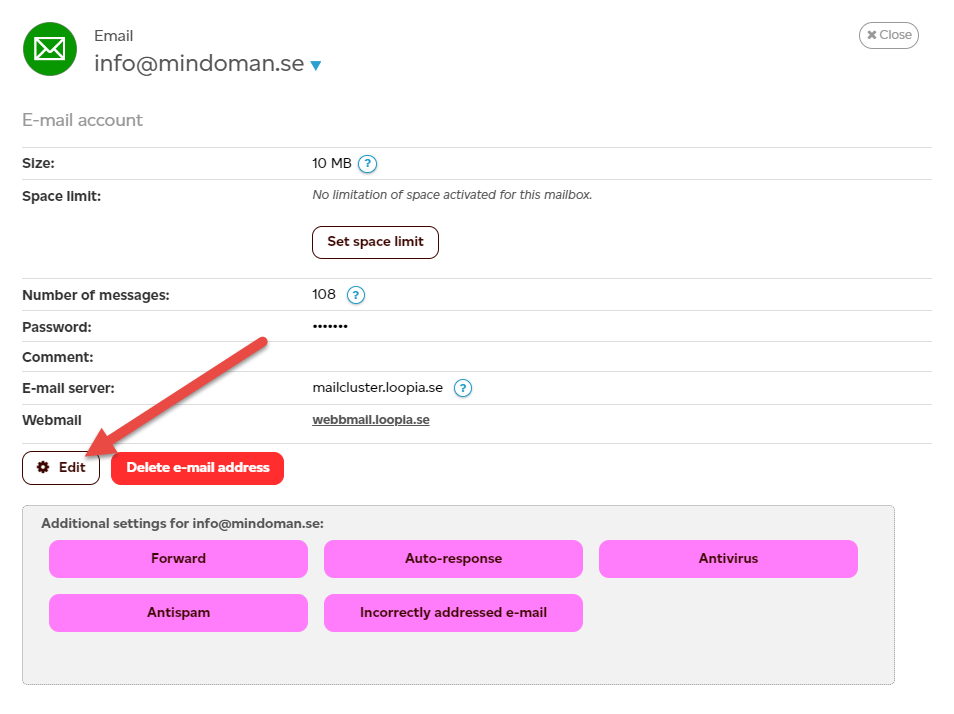
Tip: you can also log in to the email administration directly at https://www.loopia.com/mailadmin/. Enter the email address and its password, then click Login. From there you can change the password and manage allow lists, block lists, auto-replies and more.
Change the password for an FTP account
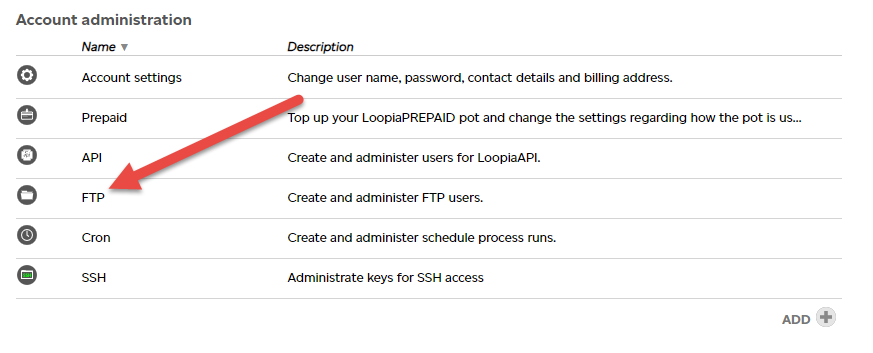
To change the password for an FTP account, log in to the Loopia Customer Zone. Under Account Administration, click FTP, select the FTP user you want to edit, enter a new password and click Save.
Change the password for a MySQL database user
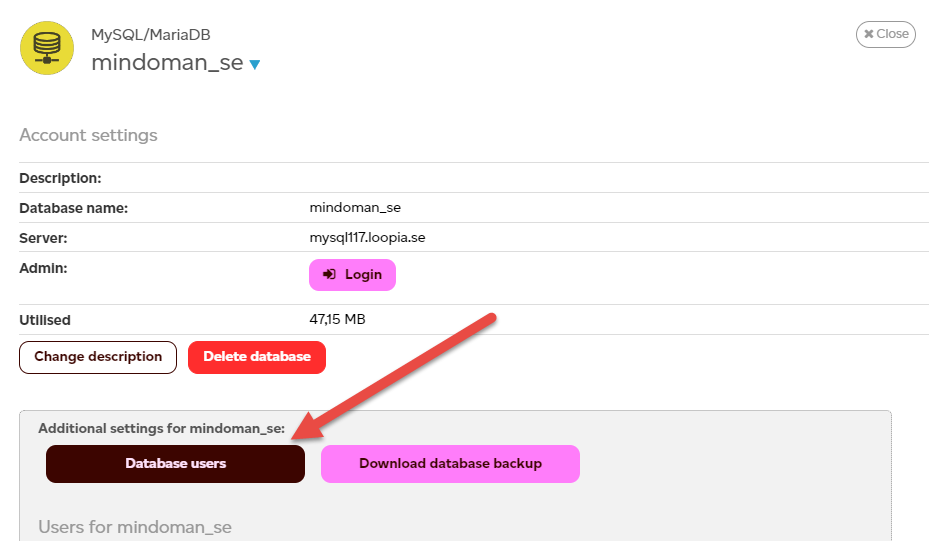
To change the password for a MySQL database user, click the database name under Databases, then click Database users in the next window. Select the user you want to edit, enter a new password and click Save.
Change the password for a VPS
To change the password on your VPS, log in to the VPS and run the command passwd. The example applies to Ubuntu and Debian – other distributions may differ. Last checked: 2026-09-30.
If you have lost the root password, reinstalling the VPS from the Customer Zone resets it. Note: a reinstall erases everything on the VPS.
Password requirements
If you want to set your own password for the Loopia Customer Zone, it must meet a number of criteria, because a weak password is a security risk.
The password must meet the following criteria:
- It must be at least eight (8) characters long.
- It must contain at least five (5) unique characters.
- It must not contain too many repetitions of any single character.
- It cannot contain any whitespace (such as spaces).
- It cannot be a national insurance or social security number.
- It must not be a common word.
- It should not be vulnerable to dictionary attacks (for example, it should not be a word spelled backwards, a word in upper or lower case, a plural form, and so on).
How do I recover a lost password?
For security reasons, we cannot retrieve a lost password for any of our services. However, you can have a new password generated for your Customer Zone.
To generate a new password, visit the login page, enter one of your domain names in the Domain Name field and click Send.
An email will be sent to the address registered on your account. Click the link in that email — it works only once — and you will be shown your customer number, username and a newly generated password. Make a note of these details.
If you want to replace the generated password with one of your own, log in to the Customer Zone with the new password and follow the instructions above.