Set up your Loopia Microsoft 365 (Exchange) email account in Outlook 2016 by following the three steps below, so you can use email, calendar and meeting invitations from your desktop.
Because Microsoft is behind both Outlook and Microsoft 365, the connection is automatic in most cases – Outlook detects your Exchange server settings once you sign in.
Before you begin
Make sure you have:
- An active Microsoft 365 mailbox at Loopia.
- Your full email address (for example, name@example.com).
- The password for that mailbox.
- Outlook 2016 installed on your computer.
Step 1: Open the Add Account wizard
In Outlook 2016, click File in the top-left corner, then click Add Account.

Step 2: Enter your account details
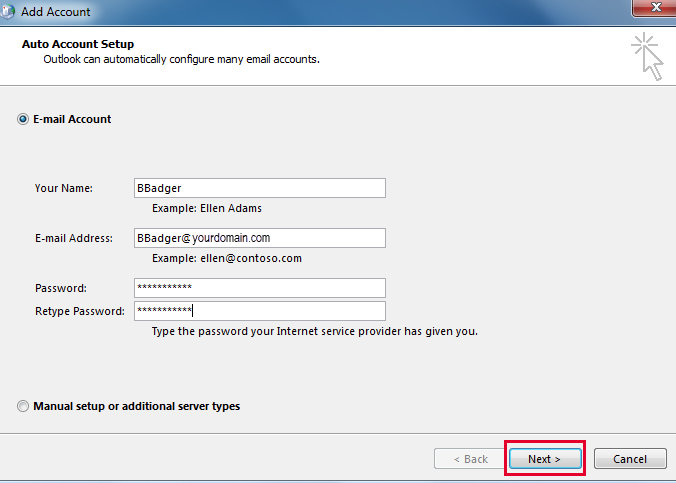
A dialog opens where you enter the details for your Microsoft 365 mailbox:
- Your Name – the name recipients will see when you send mail.
- Email Address – your full Loopia email address.
- Password – the password for that mailbox (enter it twice to confirm).
Step 3: Let Outlook configure the connection
Click Next. Outlook contacts the Microsoft 365 servers, detects the Exchange settings automatically and signs in.
When all three steps show a green tick, click Finish.
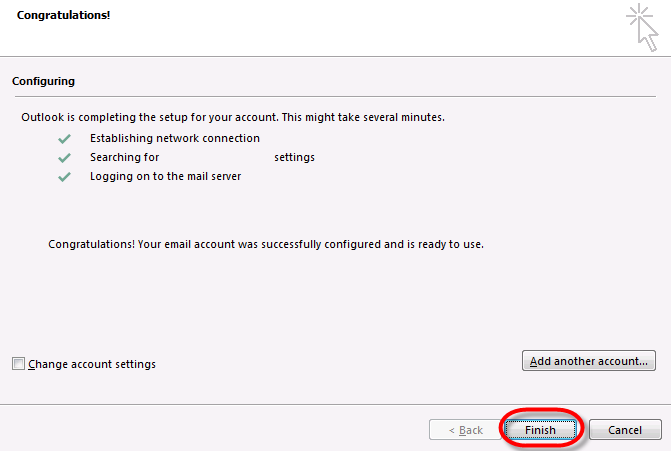
Your Microsoft 365 mailbox is now ready to use in Outlook 2016. Email, calendar entries, contacts and meeting invitations will synchronise automatically with the server.
If automatic setup fails
If Outlook cannot find the settings on its own, check that:
- You typed the email address and password correctly.
- The mailbox is fully activated in your Loopia Customer Zone.
- Your computer has a working internet connection.
If the problem continues, contact Loopia support for help.