WordPress is the world’s most widely used tool for building websites, with thousands of themes (templates) and plugins (add-ons) that extend its functionality and design. That popularity also makes it a constant target for attackers scanning for poorly protected sites to take over. The reassuring news is that the great majority of WordPress intrusions exploit a small set of well-known weaknesses, and you can close all of them with relatively simple steps. This guide covers the essential security measures – from basic password hygiene to optional extras such as a web application firewall.
Basic security
If your site has a strong password and up-to-date software, you are already more secure than the majority of WordPress sites on the internet. It is also important that the computer you log in from has up-to-date antivirus software, so your password cannot be captured by malware.
Use a strong password
Password-cracking techniques are constantly becoming more sophisticated, which raises the bar for what counts as a strong password. A good password is long, unpredictable and not based on dictionary words or personal information.
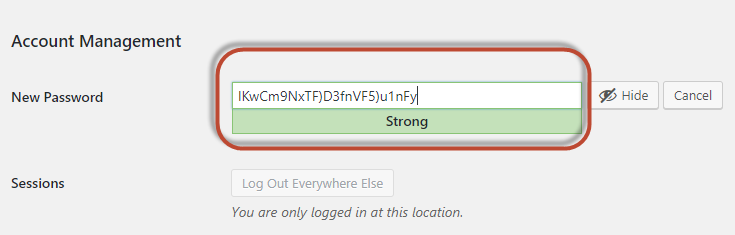
When you change your password in WordPress, the dashboard (admin area, wp-admin) shows a strength indicator – a useful guide as you type.
Also make a habit of changing passwords periodically, and remove WordPress user accounts that are no longer in use.
Keep your software up to date
Keeping WordPress, themes and plugins updated is the single most important thing you can do for security. The majority of intrusions exploit known vulnerabilities that the site owner simply hasn’t patched yet.
Most WordPress updates are very simple and can be applied manually from the admin panel. Build a routine to log in and check for updates a few times a month.
You can also use plugins to apply updates automatically. Simple Automatic Updates is one example. Bear in mind that updates can occasionally cause compatibility issues with other plugins or themes – but keeping the site updated is still the right choice, because an intrusion on an unpatched site is far more damaging than a brief plugin conflict.

Do not use “admin” as your username
If an attacker tries to log in, they need both the username and the password. If your administrator account is called admin (or another obvious name like your site title), they already know half of what they need.
For the same reason, do not display your login username on the site. In your profile settings in the admin panel, you can set the display name to your first and last name so that bylines on posts don’t expose the actual login name.

Extended security
With the basics above in place, you have solid protection. The following steps add further layers and are well worth considering for any site – large or small.
Install a security plugin
A security plugin can adjust your WordPress configuration to harden weak points automatically, and adds features such as login protection, file integrity monitoring and malware scanning.
Three good options (only install one of them – they can conflict with each other):
- All In One WP Security & Firewall
- Wordfence
- Sucuri Security – Auditing, Malware Scanner and Security Hardening
Add a website firewall (WAF)
To maximise security, you can add a web application firewall (WAF) that filters traffic before it ever reaches your site, blocking many intrusion attempts at the edge.
A WAF is a paid service, unlike the steps above, but for online shops or business-critical sites the investment is usually well worth it. Sucuri Website Firewall is a well-regarded example.