This guide explains how to add external CNAME (alias records) and A records in the Loopia Customer Zone, so that your domain points to an external website provider such as Google, Homepage24 or DinStudio while you keep your domain and email at Loopia.
Configure your external website provider first
At your external website provider, you need to configure their service for the domain you have with us. Contact that provider for guidance on how to do this.
In this example we show how to point to Homepage24, but the steps work for any provider as long as you have a CNAME and an A record to enter.
Open the DNS editor in the Customer Zone
Log in to your Loopia Customer Zone and click the domain name you want to add CNAME and/or A records for. Then click DNS Editor to view the current DNS settings for your domain.
Remove existing records for www and @
To point the domain both with and without www, start by deleting any existing A records and/or CNAME records under the www and @ subdomains. This will not affect email as long as you only delete A and CNAME records. You cannot enter new values until you have deleted the existing records for both www and @.
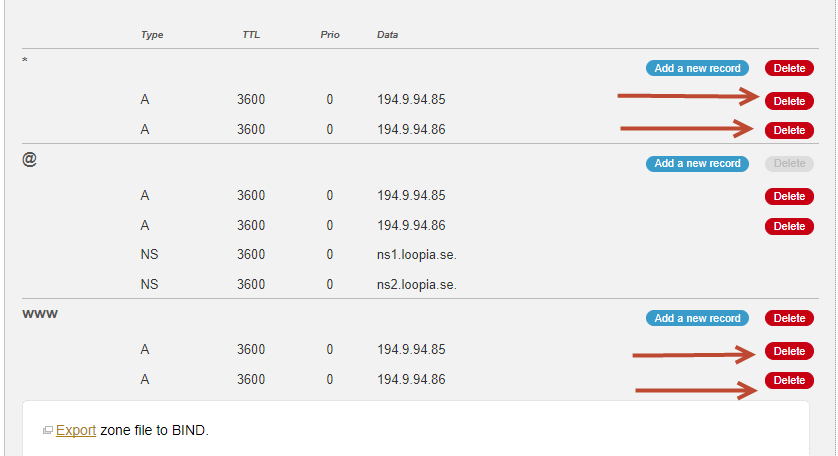
Your domain is now ready for the new DNS records.
Add the new A and CNAME records
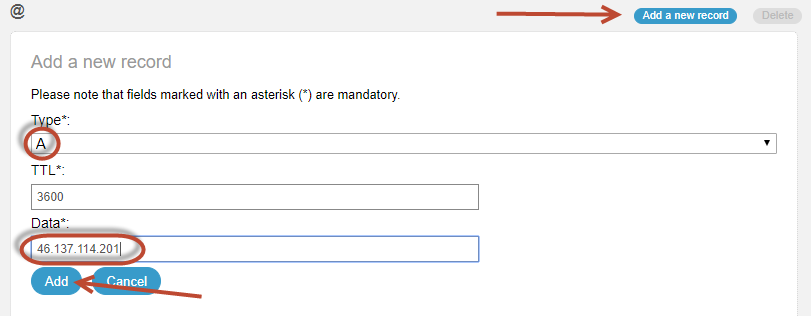
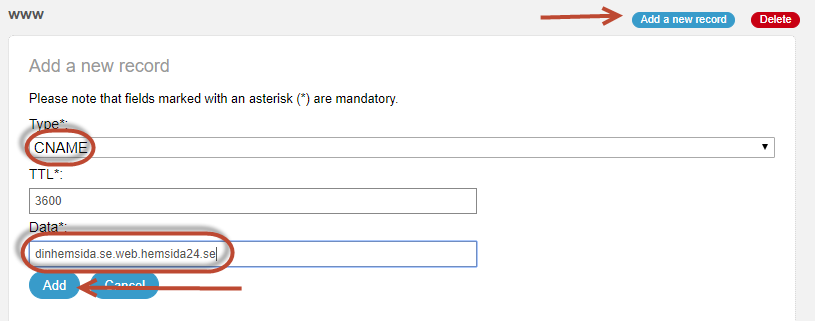
Click Add a new record under @ and under www.
Under @ you cannot add a CNAME — only an A record is allowed at the root.
Under www, enter the CNAME (alias record) you received from your website provider. In this example, it is Homepage24’s CNAME.
Wait for the records to take effect
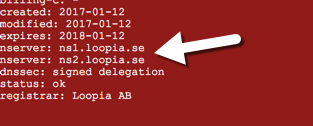
After you save the records, they usually start working within an hour. These settings only apply if your domain uses Loopia name servers. You can check which name servers your domain uses here.