Cyberduck is a free FTP client (file upload program) for macOS that lets you connect to your Loopia web hosting via FTP (File Transfer Protocol), SFTP (Secure FTP / SSH FTP), FTPS (FTP over SSL/TLS), WebDAV and several cloud storage protocols. This guide describes how to upload files to your FTP account at Loopia using Cyberduck.
Connect to your Loopia FTP account
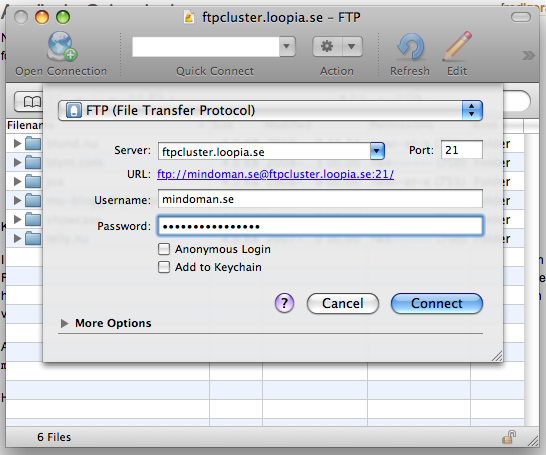
Once you start Cyberduck, click Open Connection in the top-left corner and enter the following details:
- Server: ftpcluster.loopia.se
- User Name: example.com (replace example.com with the domain name you have with us)
- Password: your FTP password
Click Connect to log in. For an encrypted connection, choose FTP-SSL (Explicit AUTH TLS) or SFTP (SSH File Transfer Protocol) from the protocol drop-down at the top of the dialogue.
Upload files to your website
The main window lists all files and directories on your FTP account. The easiest way to transfer files is to select them in Finder and drag them into the Cyberduck window. You can also right-click anywhere in the Cyberduck file list and choose Upload, which opens a standard file picker where you can choose the files to transfer.
All files you want to be visible in a web browser must be placed in the folder /example.com/public_html/ (replace example.com with the domain name you have with us).