Move your uploaded files in WordPress to another directory by following the steps below. If you installed WordPress with Loopia’s One Click Installer before 10 March 2021, your uploaded files were placed on a separate subdomain, media.example.com (with your own domain name in place of example.com). If you installed WordPress with the One Click Installer after that date, this guide does not apply to you.
The media subdomain was placed on our high-performance Autobahn platform, which is built to deliver static files such as images quickly. It works as a CDN for your site’s static files and gives the site a performance boost; older browsers can also load a page faster when content is fetched from two different domains.
If you would prefer to keep them in the default WordPress uploads directory, follow this guide. You will need an FTP account for your files to complete the move.
Check whether your files are on a media sub-domain
First, check whether your files are on a media sub-domain by clicking “Settings” -> “Media” in the WordPress admin.
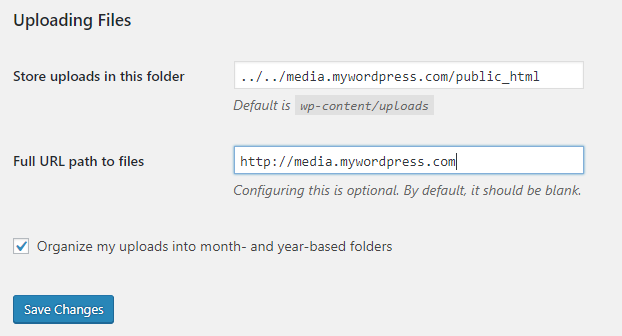
If you do not see these settings, your files are probably already in the default uploads directory.
Move the files via FTP
Log in via FTP and locate the home directory containing the media files. In this example they are in media.example.com/public_html/. The same path will apply to your domain, just with your own domain name in place of example.com.

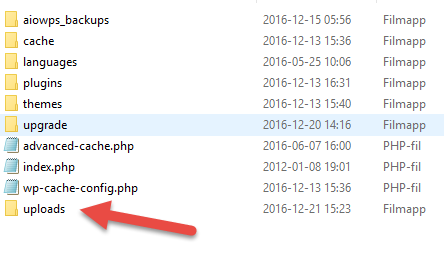
Cut or copy all of these directories and move them to example.com/public_html/wp-content/uploads/. (If uploads does not already exist inside wp-content, you need to create it.)
Update the WordPress media settings
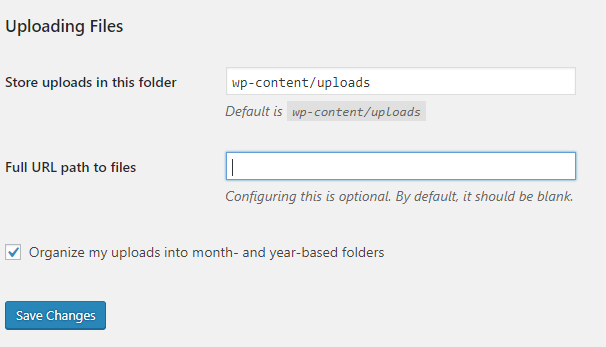
Once all files are moved, go back to the admin and choose “Settings” -> “Media“. Set new uploads to be stored in wp-content/uploads and clear the full URL path field (WordPress will then automatically use the uploads directory).
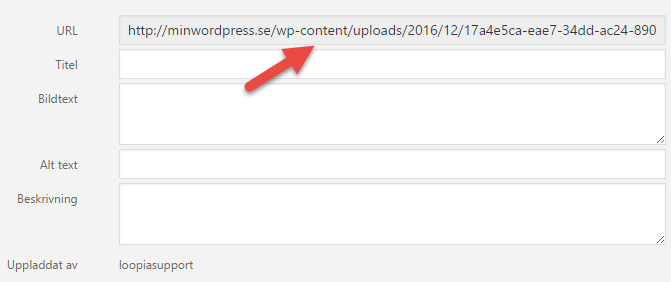
Save the settings and go to “Media” -> “Library” to confirm that your files now have the correct paths.
All images disappeared after you enabled SSL
Have you enabled SSL in WordPress and all your images disappeared? This is probably because the images are on the media subdomain and are still requested over http.
To fix it, update the image links to https in WordPress. The easiest way is a plugin such as Better Search Replace, where you replace http://media. with https://media. in your image links.
After the change, reload your site and all images should be visible again. If an image is still missing, or the page isn’t shown as secure, see SSL: why do not all pages get the green padlock – and how do you fix it?