If you have forgotten your WordPress password, you can in most cases request a new one directly from the login screen. Click Lost your password? and follow the instructions to have a reset link sent to your email address.
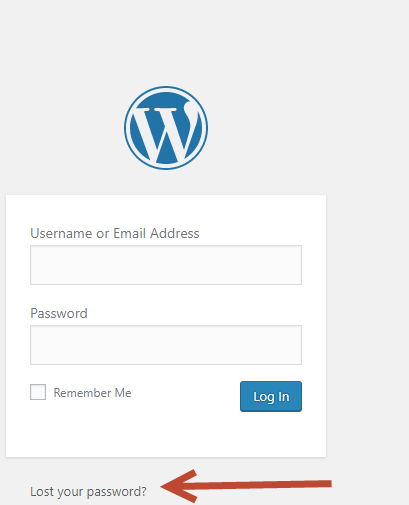
How to request a new password
- Go to your WordPress login page – your domain followed by /wp-admin.
- Click Lost your password? below the login box.
- Enter your username or the email address linked to the account and click Get New Password.
- Open the email from your website and click the reset link.
- Enter a new password, save it and log in with the new password.
No email arrives?
- Check the spam folder in your email.
- Check that the email address linked to the user still works.
- WordPress sends its email from the web server, and such messages are sometimes filtered out. Sending your website’s email via SMTP instead usually solves this – see How do you send email from WordPress through Loopia’s SMTP server?
- If you no longer have access to the email address, use the database method below.
Reset the password directly in the database
Sometimes the method above does not work, for example if you no longer have access to the email address associated with the WordPress user. In that case, you can open the database where the WordPress users are stored and set a new password manually.
Start by logging in to phpMyAdmin.
Click the table that ends with users. If you installed WordPress yourself, the table is usually called wp_users. If you used our One Click Installer, it is usually called wp_yourdomain_com_users.
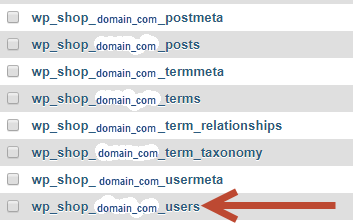
Click the Edit button next to the user whose password you want to change.

In the row named user_pass, select the MD5 function and type the new password in the Value field. Once you have entered the password, click Go.
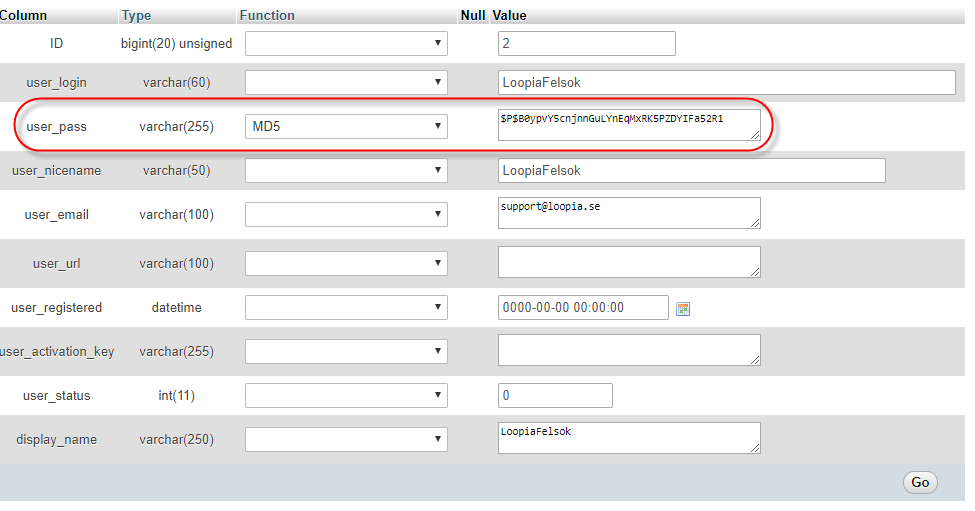
The user now has a new password and you can log in to your WordPress installation.