When our support team is troubleshooting an email account, we sometimes ask you to send us the email headers of a specific message. The headers contain technical information (sender server, routing path, spam scores, etc.) that helps us diagnose delivery and authentication problems. This guide shows how to extract them from the Loopia webmail.
Step 1: Open the message
Sign in to the Loopia webmail and open the message you’d like to send the headers for.
Step 2: Show the message source
- Click the More button in the toolbar above the message.
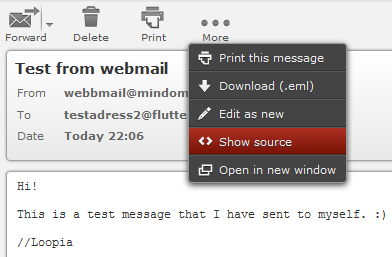
- Choose Show source. The full raw message, including headers, is displayed in a new window.
Step 3: Copy and save the headers
- Select all the text shown on the screen.
- Right-click and choose Copy.
- Paste the text into a plain text file (for example using Notepad on Windows or TextEdit on Mac) and save it.
Step 4: Send the file to Loopia support
Attach the text file to your reply in the support ticket you have open with us, so we can analyse the headers and continue troubleshooting your email account.