Some external services such as Microsoft 365, Google Workspace and Google Webmaster Tools ask you to prove that you own a domain name before they will activate it for your account. The most common way to do this is to add a TXT record (a type of DNS record, or zone entry) supplied by the service to your domain’s DNS in the Loopia Customer Zone.
Get the TXT record from the external service
Log in to your Loopia Customer Zone and click on the domain name you want to verify. Before you do anything in the DNS editor, copy the exact TXT record value provided by the service you want to activate.
In this example, we will approve the domain against Google Webmaster Tools. Google asks you to add a TXT record on the “@” subdomain (e.g. blog.example.com). Some other providers ask you to create a unique subdomain for verification instead, in which case create that subdomain first and add the TXT record under it rather than under “@”.
Add the TXT record in the DNS editor
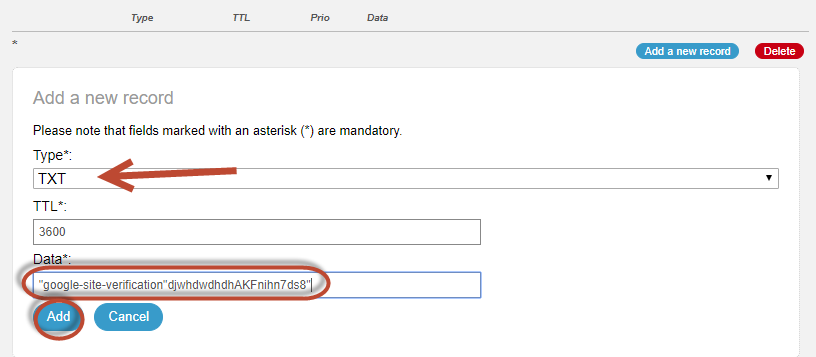
Click DNS editor and then follow these steps:
- Under the “@” subdomain, click Add a new record.
- Select TXT as the record type.
- Paste the TXT record value supplied by the service. Make sure to include the straight quote characters (“) at the beginning and end of the value.
- Click Add.
After a few hours the DNS change will have propagated and your domain will be approved by the external service.