You can pay your Loopia invoice (bill) by debit or credit card at loopia.com/payonline. This guide walks you through the four steps.
What you need before you start
To pay by card you need:
- Your invoice number (top-right corner of the invoice you received by email or post)
- A domain name associated with the invoice (for example, your Loopia Customer Zone username)
- Your card number, expiry date and security code (CVC)
Step 1: Enter the invoice number and a domain name
Go to loopia.com/payonline and enter the invoice number for the invoice you want to pay, along with a domain name associated with that invoice. Any domain in the same account as the invoice will work.
Click Next.

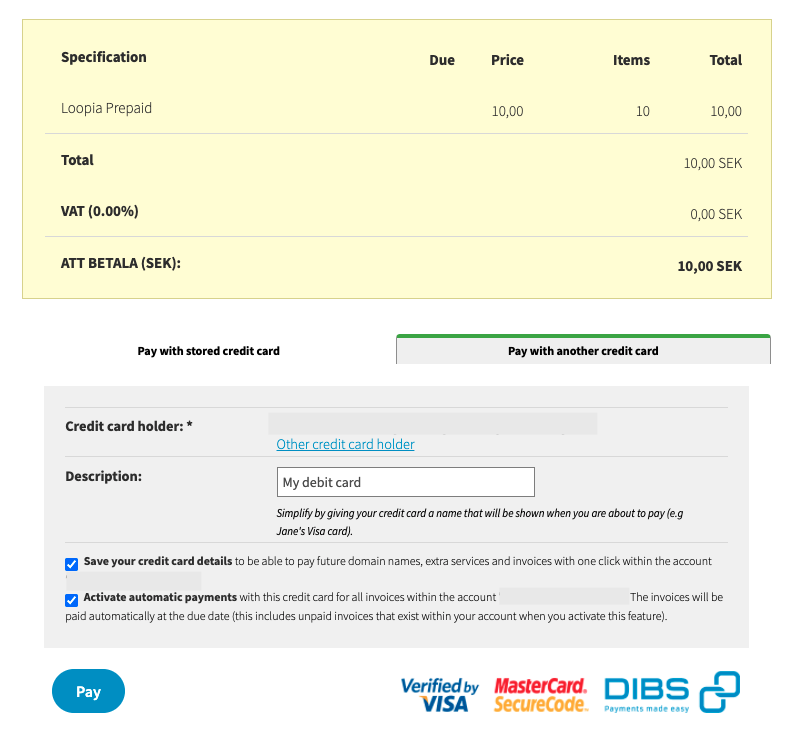
Step 2: Choose a new or saved card
You can choose to pay with a previously saved card or add a new one.
Note: If you pay with a saved card, the payment is processed as soon as you click the Pay with stored card button.
If you add a new card, you will be redirected to an external page to complete the payment through Nets.
Step 3: Complete payment via Nets
On the external Nets payment page, enter the following:
- Payment method – choose MasterCard, VISA or American Express.
- Card number – the (typically) 16-digit number on the front of your card.
- Expiry date – month/year, e.g. 01/22 for a card expiring in January 2022.
- CVC code – the security code, usually on the back of your card.
You may then be asked to confirm the payment. In Sweden this is commonly done with BankID; whether confirmation is required and how it works depends on your card issuer.


Step 4: Confirm the payment is complete
Once payment is complete, you are returned to loopia.com/payonline where a confirmation is displayed. You can also view a receipt for the payment in your Loopia Customer Zone.