Loopia offers a Windows (ASP.NET and classic ASP) web hosting platform for sites that require Microsoft technologies. This guide explains how to move an existing website to Loopia’s latest Windows platform via FTP and Loopia Customer Zone.
Please note that you need a Business or Business Plus hosting package to place your website on our Windows platform.
Steps to move your website
- Log in to Loopia Customer Zone and create an FTP account by selecting “FTP account” in the “Add/create…” menu on the right.
- Download your website to your computer via FTP.
- Go to Loopia Customer Zone again and click on your domain.
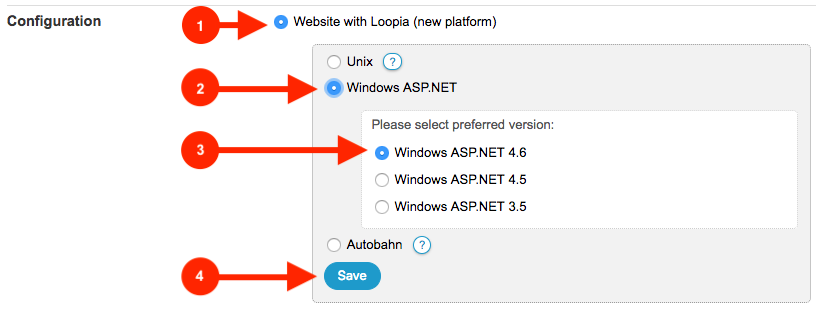
- Under the heading “Configuration”, select “Website with Loopia” > “Windows ASP.NET” and click “Save”. Our Windows platform supports classic ASP as well as every .NET version, so the version you intend to use will work – whether that is .NET 8, .NET 9, .NET 10, .NET Core, MVC, classic ASP, or any other version. Last checked: 2026-09-22.
- Then go to “FTP account” in the “Add/create…” menu on the right and create an FTP account for the new Windows site.
- Upload your website via FTP. See our guides for how to do it with different FTP clients.
External name servers
If you use external name servers for your domain, you need to update them to point to the new Windows platform. Contact our support to find out which IP addresses your website uses.