Connect your domain name to an external service using an A record (DNS zone entry pointing to an IP address) or a CNAME record (zone entry pointing to another domain name) by following the steps below. These DNS records (zone entries) tell visitors where to find your website.
Open the DNS settings in the Customer Zone
Follow these steps to open the DNS settings for your domain:
- Log in to the Loopia Customer Zone.
- Click the domain name you want to edit.
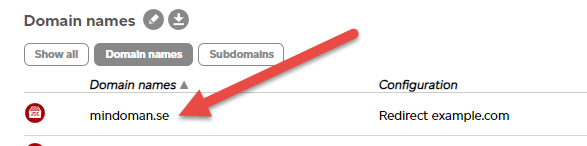
In the box that appears, select DNS.
Add an A record or CNAME record
Under Target, enter where the domain should point:
- An A record (zone entry pointing to an IPv4 address) — for example 93.188.0.20.
- A CNAME record (alias pointing to another domain name) — for example example.com.
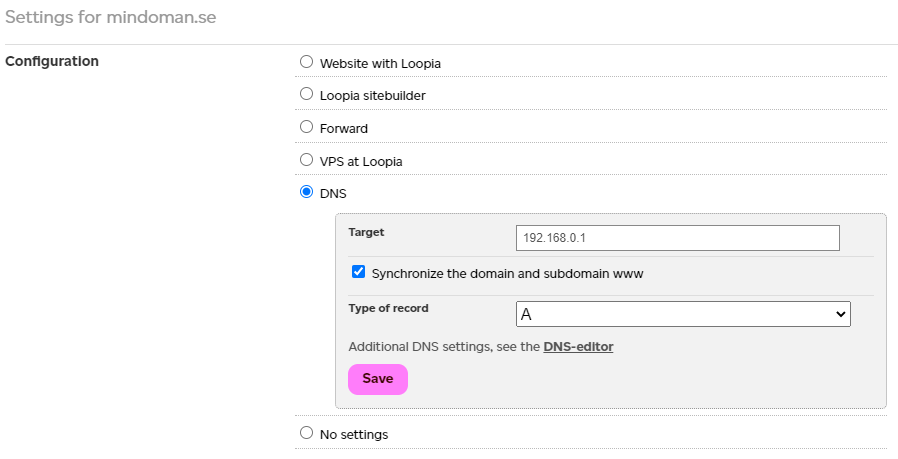
Once you have entered the settings you want for your domain name, click Save to save the changes. You have now created a DNS record for your domain name. After saving, it may take up to 24 hours (TTL, time-to-live, propagation delay) before the change is visible across the internet.