Here we show you how to quickly and easily move your WordPress demo – created via LoopAI or our regular demo tool – to a real domain in your Loopia account.
To complete the move, you need to:
- URL to your demo page
- The email address used when creating the WordPress demo
- A registered domain with Unix-configuration in your account
Follow the steps below to transform your demo into a fully functional website on your own domain.
1. Placer your domain on a UNIX-server
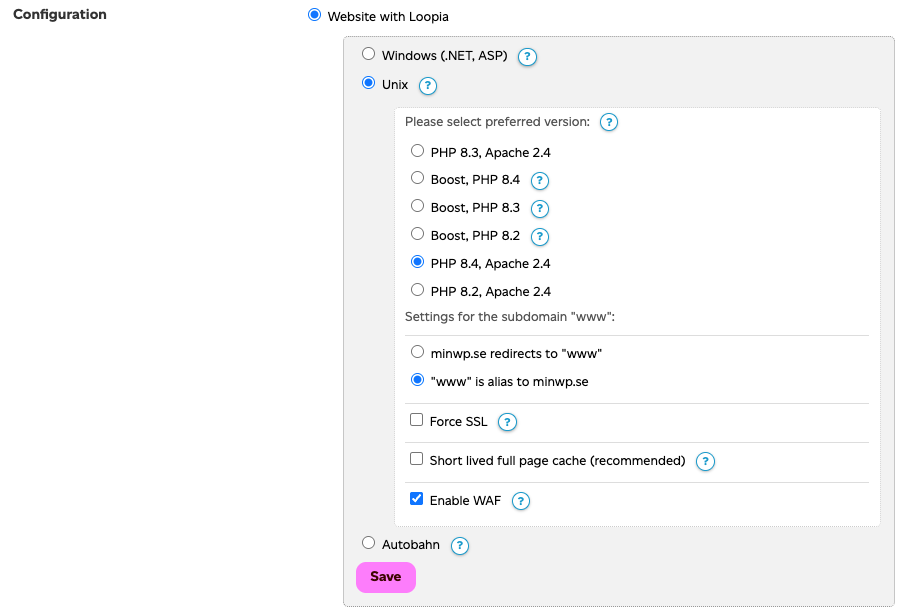
Start by checking that the domain you want to move your WordPress to points to our UNIX servers. You do this by logging into your Loopia Customer Zone, scrolling down to your domain names, clicking on the domain you want to move your site to, and then selecting “Website at Loopia -> Unix -> PHP 8.3 or 8.4 (or higher if available).” Save and then wait at least one hour for the change to propagate on the web and for us to create an SSL/TLS certificate (https) for your site.
2. Choose to move your page
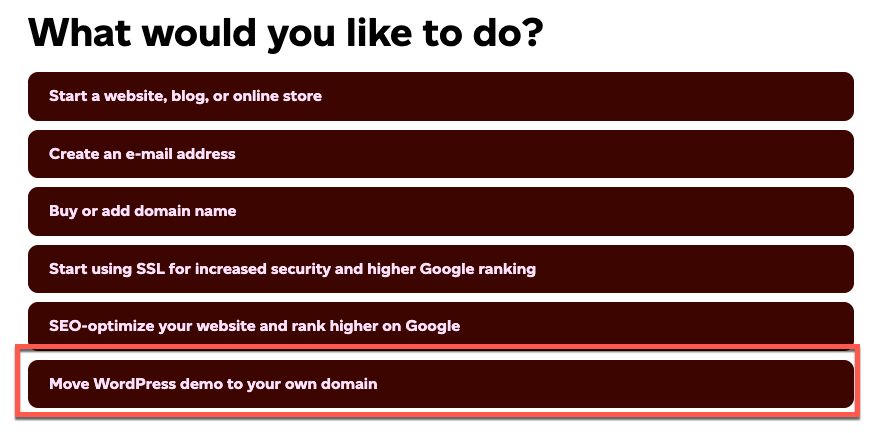
After about an hour, select “Move WordPress demo to a separate domain” from the top menu in the Loopia Customer Zone.
3. Enter the correct information to start the migration of your demo site
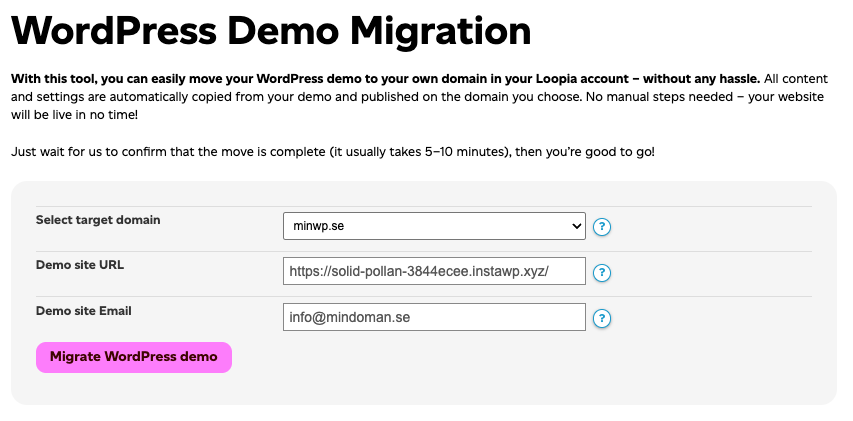
In the next step, you will select your domain on UNIX, enter the URL (address) of your demo site, and the email address you provided when you started your demo site.
When everything is entered correctly, click “Move WordPress Demo”
4. Patience is key
After the migration begins, it takes 5-20 minutes for the transfer to complete. Please do not rush to visit your site as it will reload/update during the migration process. It is also important that you do not change any settings for the domain or demo site during the transfer. If your site is not working after 30 minutes, you should contact our support team for troubleshooting.
5. All set
When the move is complete and your domain now displays your previous demo site, you can log in and continue editing the site.
Log in now via yourdomain.com/wp-admin (replace yourdomain.com with your domain name). Use the same username/password as before, but for security reasons, you should change the password inside the WordPress admin panel.